 Help CentreBack to nineten.aiHelp CentreBack to nineten.ai
For NineTen AI clients. You need Claude and your NineTen AI connector.
3 messages to Claude and 1 page to check
Decision maker emails suit companies big enough to have their own managers, such as factories, distributors and larger service firms. For very small businesses like clinics, shops and salons, use their company email instead. Count first for free, check the companies, then approve only the people who fit. Nothing is spent until you approve.
Step 1 of 4
Counting costs nothing. It shows you if your search is too narrow or too wide before anything is spent.
About 1,080 people match. Nothing has been spent.
| People who match | 1,080 |
| verified only | |
| Spent | nothing |
A number, and nothing spent. Too few? Add more job titles. Too many? Pick one industry or one country at a time.
Step 2 of 4
A quick look at the company names tells you if the industry word is right. This is free too.
Here are 10 of the companies. Nothing has been spent.
| 1 | ABC Snacks |
| 2 | CY Sauce Makers |
| 3 | KJ Kuih Makers |
| 4 | ZQ Software |
Company names you can check by eye. If some do not fit, tell Claude which ones and why, and ask it to change the search.
Step 3 of 4
Tell Claude how many you want. It sends you a page to check them. Nothing is charged yet.
I found 200 people. Nothing is added or charged yet.
| Found | 200 people |
| Next | Open your preview link to check them |
Claude may first tell you what the run will use and ask for your yes. Then you get a preview link. It stays open for 7 days.
Step 4 of 4
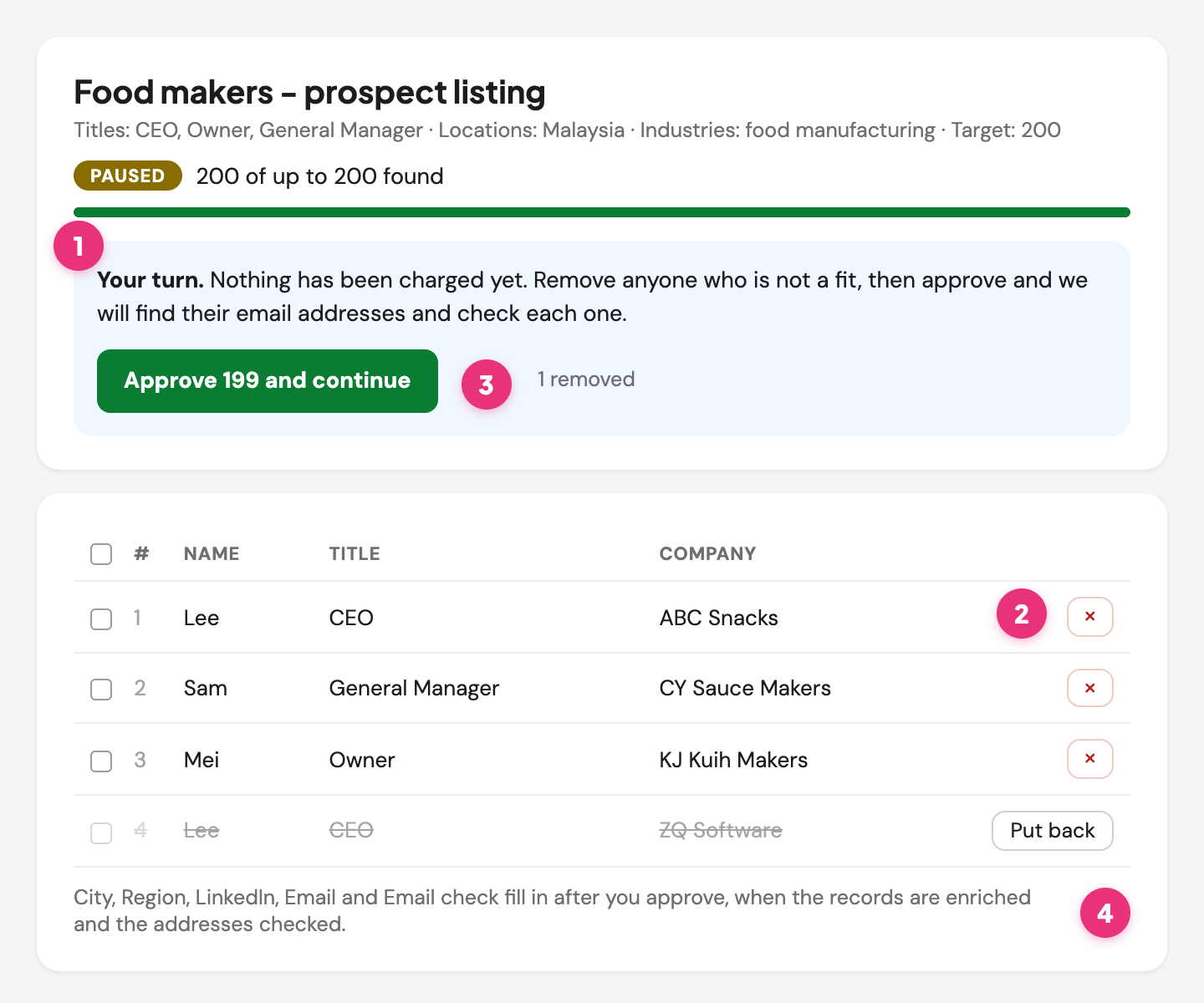
This page is where you decide who goes in. Only you can approve, Claude cannot do it for you.
The people you kept, in My leads. Only emails that pass the check can be emailed.
Ready to email them? Follow the cold email campaign guide from step 2 to put them in a campaign. For tips that get you more of the right people, see Best practice for finding decision maker emails.
Stuck? Send us a screenshot on WhatsApp.