For NineTen AI clients. You need Claude and your NineTen AI connector.
6 short steps in your portal
How to check your campaign performance
Three pages in your portal show how your campaigns are doing.
Step 1 of 6
1Start with your warm leads
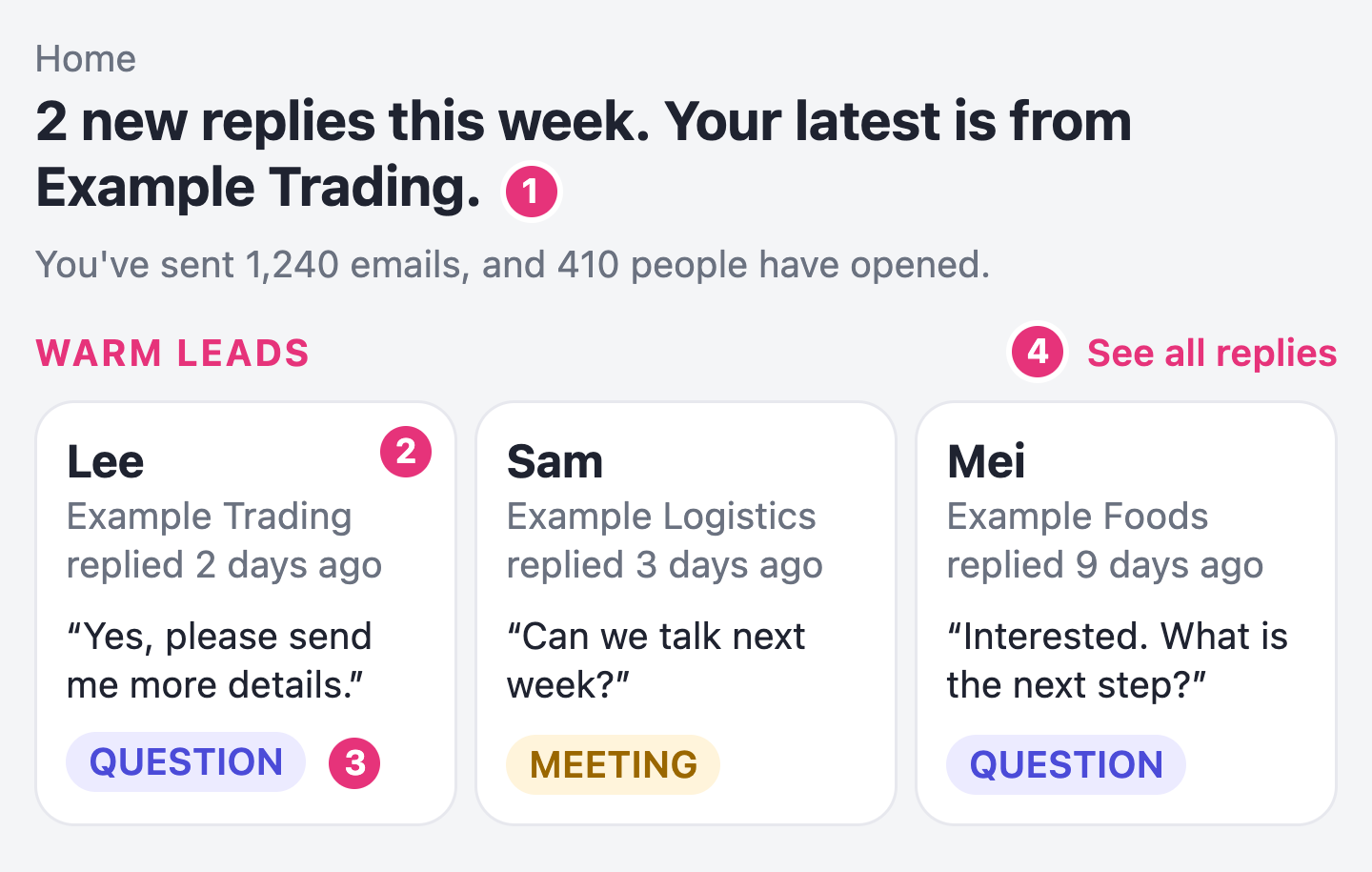
Open Home in your portal. Your warm leads sit at the top: people who asked about pricing, asked a question or asked to meet.
- Top line your latest reply, total emails sent and how many people opened
- Warm lead person who replied, and what they said
- Tag what they are asking for: Pricing, Question or Meeting
- See all replies every reply in one list
Step 2 of 6
2Read your numbers on Home
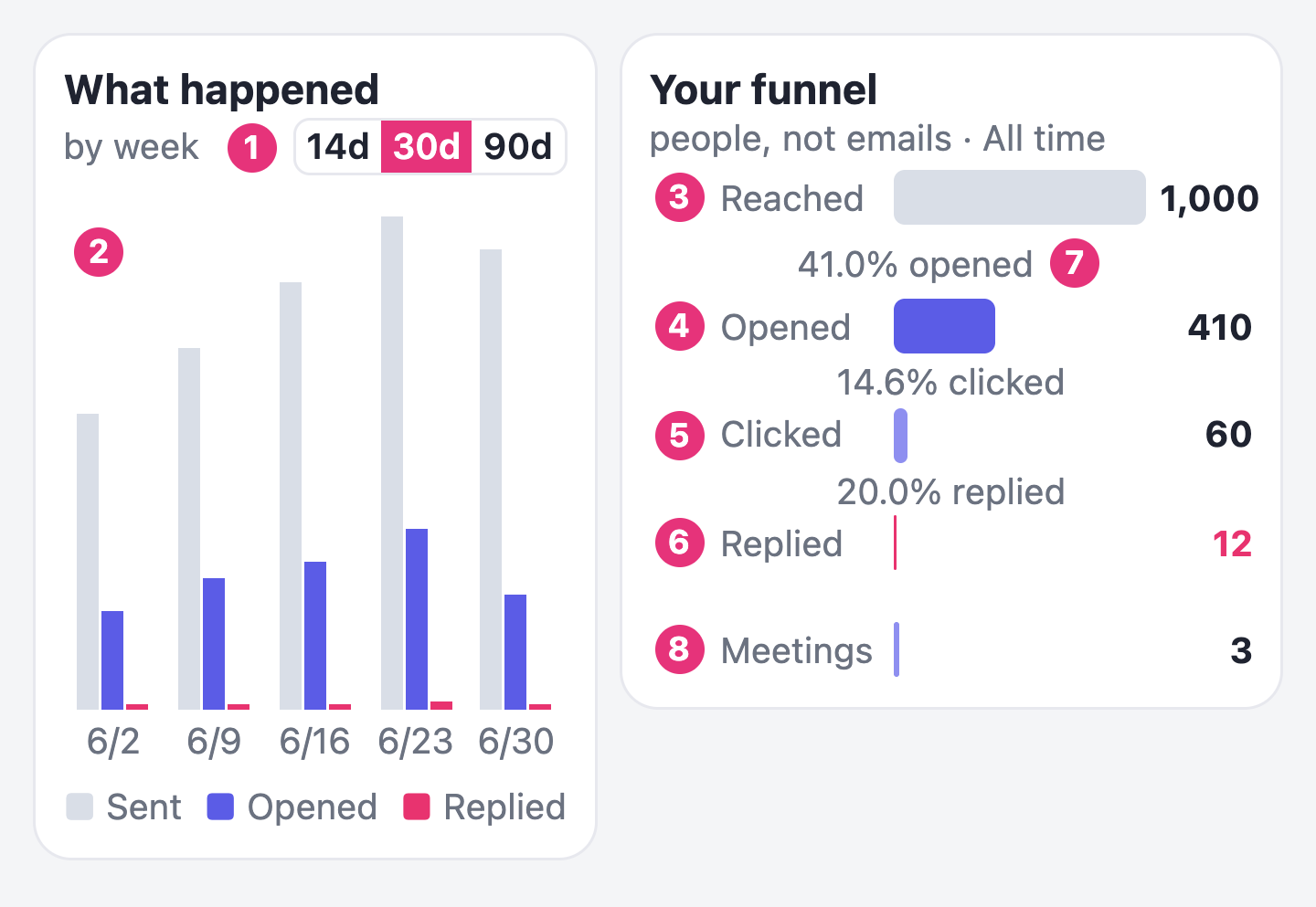
Scroll down to What happened and Your funnel. What happened counts emails, week by week. Your funnel counts people, since your first email.
- 14d, 30d, 90d the period shown: the last 14, 30 or 90 days
- Bars emails sent, opened and replied each week
- Reached people who received at least one email
- Opened people who opened at least one email
- Clicked people who clicked a link
- Replied people who replied
- % line share of the row above: 41% opened means 41 of every 100 people reached opened an email
- Meetings people who booked a meeting with you
Step 3 of 6
3The rest of your Home page
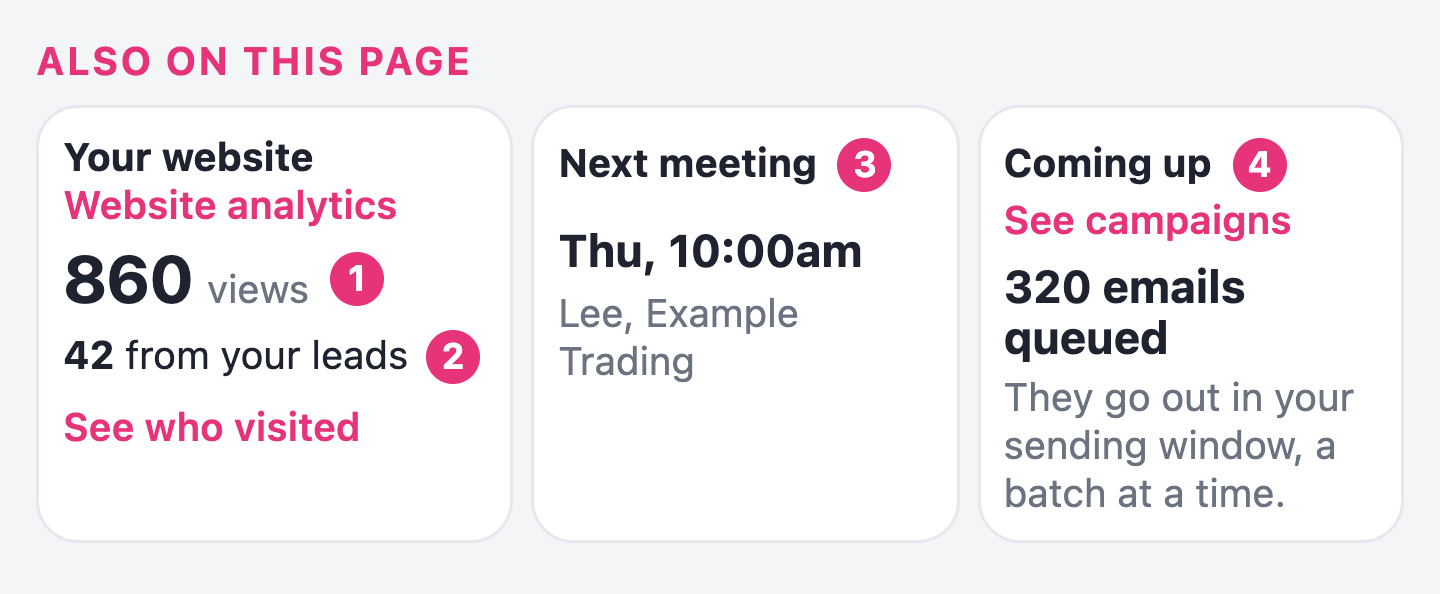
At the bottom of Home, under Also on this page.
- Views how many times your website pages were viewed, by anyone who visited
- From your leads how many of your leads were seen on your website
- Next meeting the next meeting booked with you: day, time and who
- Coming up emails queued to go out, sent in batches within your sending window
Step 4 of 6
4Read your Campaigns page
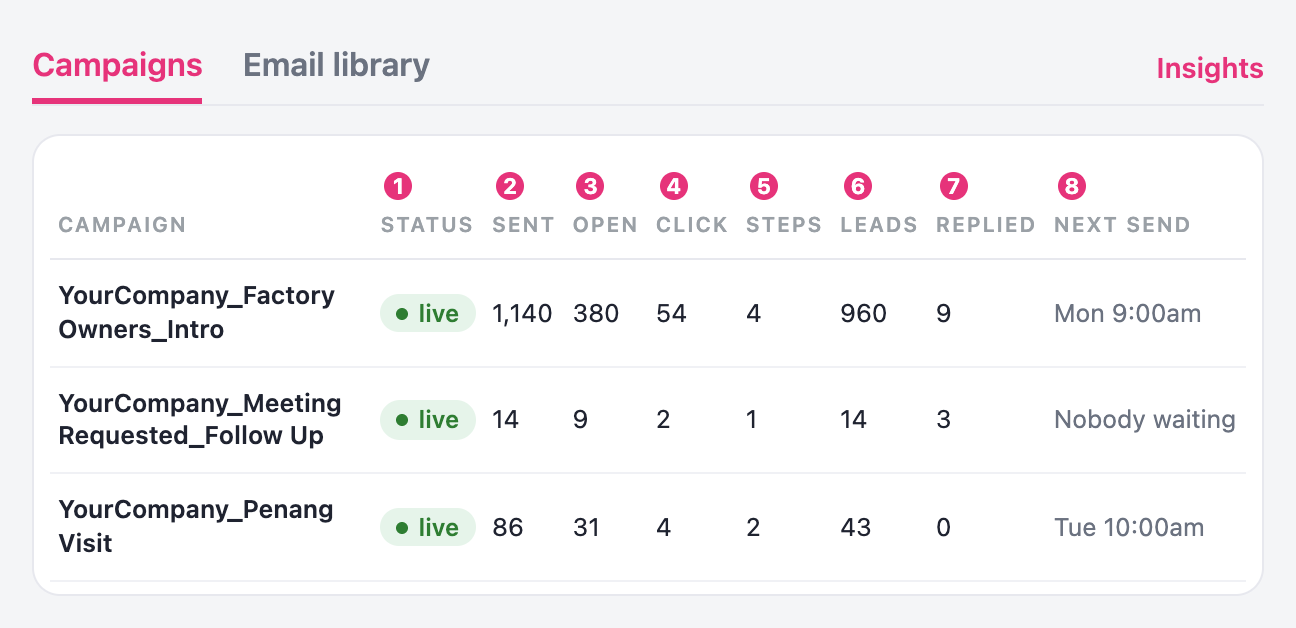
Go to Campaigns in your portal. Each row is one campaign. Read it from left to right.
- Status live: sending now. paused: on hold until resumed. draft: not started yet. archived: no longer sends.
- Sent total emails sent to date
- Open emails opened, each counted once. Opens that look like email filters are left out.
- Click emails with a click on a link, each counted once
- Steps number of emails in this campaign
- Leads total leads added to this campaign
- Replied emails that received a reply
- Next send date and time of the next email. Nobody waiting: no lead is waiting for a next email from this campaign.
Step 5 of 6
5See all your leads
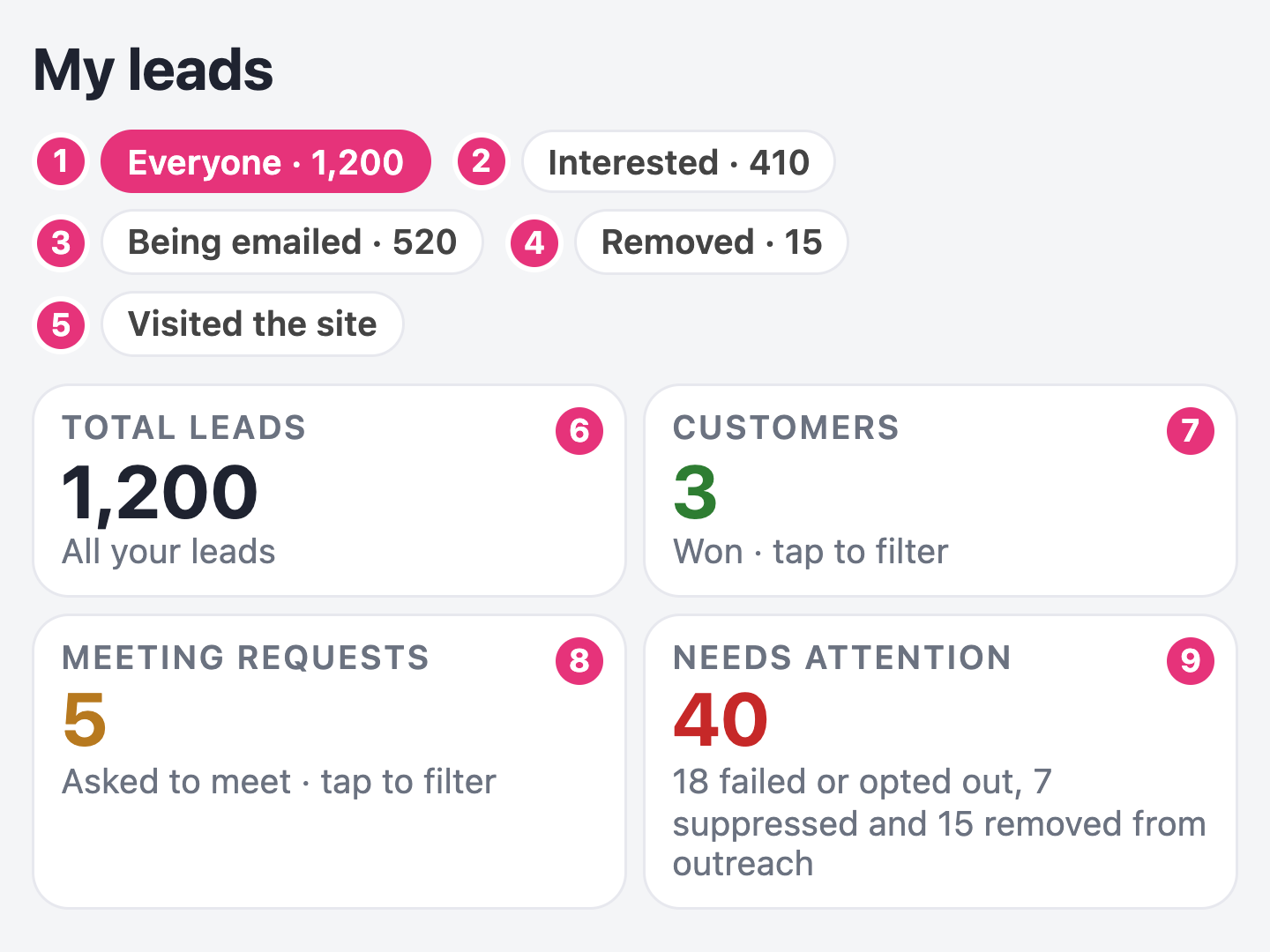
Go to My leads in your portal. The tabs and boxes at the top count your leads for you.
- Everyone all your leads
- Interested leads who opened at least once
- Being emailed leads in a campaign right now
- Removed leads taken off your outreach
- Visited the site leads who once came to your website through a link in your emails
- Total leads how many leads you have
- Customers leads marked as won. Click to list them.
- Meeting requests leads who asked to meet. Click to list them.
- Needs attention leads you cannot email now: failed or opted out, unverified, suppressed by our team, removed from outreach, or with another status
Step 6 of 6
6Find your most interested leads
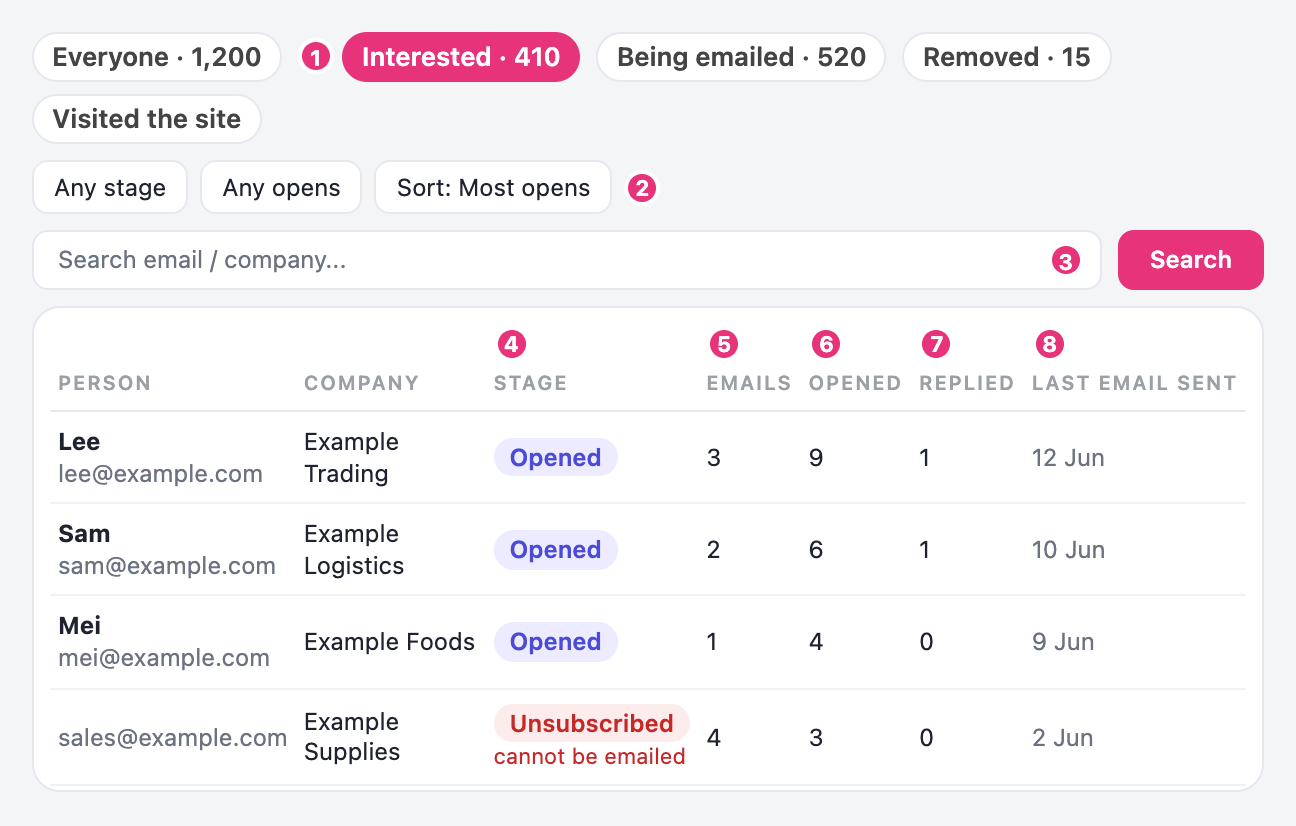
Click Interested, then set the sort to Most opens. Each row is one lead, with their own numbers.
- Interested show only interested leads
- Most opens the leads who opened most go to the top
- Search find one lead by email or company
- Stage where the lead is now, such as Opened, No answer yet or Unsubscribed
- Emails emails you sent them
- Opened your emails they opened, each counted once
- Replied times they replied
- Last email sent the date of your latest email to them
Check Home once a day for new replies. Once a week, look at your Campaigns page and your Interested leads.
Stuck? Send us a screenshot on WhatsApp.
 Help CentreBack to nineten.ai